








Continuous intrusion attempts on RDP and SQL server in Windows dedicated and VPS environment is a big issue for system admins. They may drain a considerable amount CPU time and Memory resource of any server as thousands such attempts can be made within a span of few minutes by the automated attacking bots. Changing RDP and SQL port to a custom one can solve this issue, but these require client side configuration changes, which may be uncomfortable for the client due to many reasons. Also the modified port number again can get exposed to the attacking bots, due to presence of a Trojan or Malware on the client system.
IPBan software written by Jeffrey N. Johnson (jjxtra) comes to a great relief in tacking this nagging issue on Windows servers. IPBan is installed as a service under Windows operating system and listens for a failed logon event on the server. Whenever an failed logon attempt is made, it starts tracking the source IP and when number of such events reach a certain predefined threshold for that IP, within a specified time span, it Block that IP in the Windows Advanced Firewall using a Blocking rule there. The IP remains banned for a predefined amount of time after this. All these time and threshold values are configurable through the configuration file of the IPBan software. IPBan is a free tools which can be downloaded from jjxtra’s website Digitalruby.com and is updated often.
Now let us follow the steps that are required to install IPBan software on a Windows server:
1. IPBan software can be downloaded from the URL – https://github.com/jjxtra/Windows-IP-Ban-Service/downloads. This software only works on Windows Server 2008/R2.
2. The IPBan software requires .net framework v.4, which can be installed from the URL – http://www.microsoft.com/en-us/download/details.aspx?id=17851 , if not already present in the system.
3. In order to enable the Remote Desktop Service to properly log the intruder’s IP addresses in the windows event log, perform the following configuration changes in Remote Desktop Session Host Configuration.
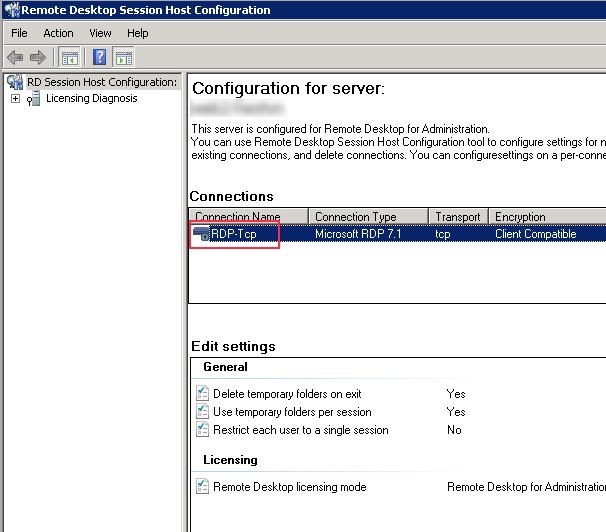
a) Run the Remote Desktop Session Host Configuration tool on Windows Server 2008/R2.
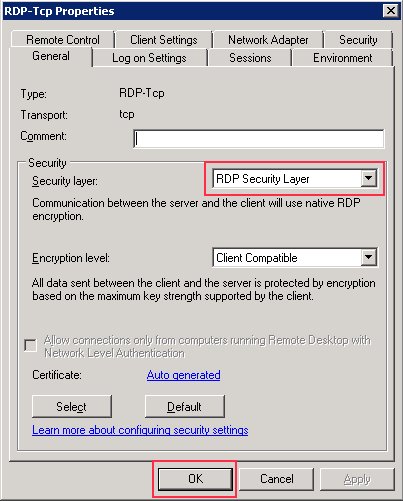
b) Double-click the connection RDP-Tcp to change encryption settings to native RDP encryption.
c) In order to do so change the Security Layer value to RDP Security Layer from the drop-down list in the General tab and click OK.
d) Now reboot the server to bring this change to effect.
4. Extract and copy all the files from the downloaded IPBan software zip archive to the folder C:IPBan
5. The IPBan.exe.config file in the folder contains all the configuration settings for IPBan software.
6. The following section configures the number of failed audits in the event viewer before banning the IP address:
[sourcecode wraplines=”false” collapse=”false”]
<add key=”FailedLoginAttemptsBeforeBan” value=”5″ />
[/sourcecode]
Change the value setting according to your requirement.
7. The following section configures the duration of time to ban a failed IP address:
[sourcecode wraplines=”false” collapse=”false”]
<add key=”BanTime” value=”00:00:30:00″ />
[/sourcecode]
Change the value setting according to your requirement in DD:HH:MM:SS format.
8. IPBan Log Rotation can be configured in the following section:
[sourcecode wraplines=”false” collapse=”false”]
<target name=”logfile” xsi:type=”File” fileName=”${basedir}logfile.txt” archiveNumbering=”Sequence” archiveEvery=”Day” maxArchiveFiles=”28″ />
[/sourcecode]
Change the archiveEvery and maxArchiveFiles according to your requirement and availability of storage space for the same.
9. If a named instance of SQL server is in use, then change MSSQLSERVER to MSSQL$ (e.g. MSSQL$SQLEXPRESS) in the following section:
[sourcecode wraplines=”false” collapse=”false”]
<XPath>//Provider[@Name=’MSSQLSERVER’]</XPath>
[/sourcecode]
10. Now open the Command prompt and the run the following commands there to create and start the IPBAN Service –
[sourcecode wraplines=”false” collapse=”false”]
sc create IPBAN type= own start= auto binPath= C:IPBanipban.exe DisplayName= IPBAN
net start IPBAN
[/sourcecode]
Read our related article on The Complete SQL Server 2019 Installation Guide with SSMS





10 responses to “IPBan setup guide to block intrusion attempts on RDP and MSSQL server ports”
Hey thanks for the tip. I followed all you instructions, but as soon as the service starts, it terminates itself. Here is the eventlog info:
– Provider
[ Name] Service Control Manager
[ Guid] {555908d1-a6d7-4695-8e1e-26931d2012f4}
[ EventSourceName] Service Control Manager
– EventID 7034
[ Qualifiers] 49152
Version 0
Level 2
Task 0
Opcode 0
Keywords 0x8080000000000000
– TimeCreated
[ SystemTime] 2013-02-06T21:02:05.602009400Z
EventRecordID 12381
Correlation
– Execution
[ ProcessID] 748
[ ThreadID] 6564
Channel System
Computer
Security
– EventData
param1 IPBAN
param2 2
The exact reason for the service failure should be found the logfile generated in the IPBAN directory. In order to resolve the issue first check if .net framework version 4 is properly installed in your system. If that does not solve the issue then try to configure the service to run as Administrator and start it.
We loaded IPBAN on four of our servers (thank you for the clear setup instructions). On one of them, it fails to start (a generic System Error 1067). The servers are pretty much the same (Server 2008 R2 SP1, with all windows updates installed). I have .Net 4.0 Framework installed on all of them. Perhaps someone can point me in the right direction.
In the application log, we have the following 4 events:
Event 1026 .Net Runtime:
Application: ipban.exe
Framework Version: v4.0.30319
Description: The process was terminated due to an unhandled exception.
Exception Info: System.NullReferenceException
Stack:
at IPBan.IPBanService.DeleteRule()
at IPBan.IPBanService.ProcessBanFileOnStart()
at IPBan.IPBanService.Initialize()
at IPBan.IPBanService.ServiceThread()
at System.Threading.ExecutionContext.Run(System.Threading.ExecutionContext, System.Threading.ContextCallback, System.Object, Boolean)
at System.Threading.ExecutionContext.Run(System.Threading.ExecutionContext, System.Threading.ContextCallback, System.Object)
at System.Threading.ThreadHelper.ThreadStart()
Event 1000 Application Error
Faulting application name: ipban.exe, version: 1.0.4708.35744, time stamp: 0x50ad9331
Faulting module name: unknown, version: 0.0.0.0, time stamp: 0x00000000
Exception code: 0xc0000005
Fault offset: 0x000007ff00162176
Faulting process id: 0x14f4
Faulting application start time: 0x01ce43808c313cf7
Faulting application path: c:ipbanipban.exe
Faulting module path: unknown
Report Id: ca84666d-af73-11e2-a2e4-001b78b97036
Event 1001 Windows Error Reporting (Informational)
Fault bucket , type 0
Event Name: CLR20r3
Response: Not available
Cab Id: 0
Problem signature:
P1: ipban.exe
P2: 1.0.4708.35744
P3: 50ad9331
P4: IPBan
P5: 1.0.4708.35744
P6: 50ad9331
P7: 14
P8: 11
P9: System.NullReferenceException
P10:
Attached files:
These files may be available here:
C:ProgramDataMicrosoftWindowsWERReportQueueAppCrash_ipban.exe_c1c7a8b6ea8ab01aded61fc2435ae249977cf933_149caafe
Analysis symbol:
Rechecking for solution: 0
Report Id: ca84666d-af73-11e2-a2e4-001b78b97036
Report Status: 4
Event 1001 Windows Error Reporting (Informational)
Fault bucket , type 0
Event Name: CLR20r3
Response: Not available
Cab Id: 0
Problem signature:
P1: ipban.exe
P2: 1.0.4708.35744
P3: 50ad9331
P4: IPBan
P5: 1.0.4708.35744
P6: 50ad9331
P7: 14
P8: 11
P9: System.NullReferenceException
P10:
Attached files:
These files may be available here:
C:ProgramDataMicrosoftWindowsWERReportQueueAppCrash_ipban.exe_c1c7a8b6ea8ab01aded61fc2435ae249977cf933_149caafe
Analysis symbol:
Rechecking for solution: 0
Report Id: ca84666d-af73-11e2-a2e4-001b78b97036
Report Status: 0
I’m not sure what the above is telling me. Any help/suggestions will be appreciated.
Dear Jeremy,
First make sure that you are running the IPBan service with adequate privileges. BY default the built-in System account should have enough privileged for running the service. But sometimes due to modified security configurations on the system, the IPBan service needs to run under the Administrator account, using the Administrator account’s credentials. If the problem persists, then make sure that applications compiled for .net framework v4, can run successfully on that specific system. Sometimes corrupted .net framework installations can also cause the problems too.
I have noticed that IPBan blocks the IP address on ALL ports and protocols. It might be better to block IP access on the RDP/MSSQL ports only. Possibly add it as an option in the software config:
protocol=tcp localport=3389,1433
This is hard coded in IPBan software. You have to get the source code from https://github.com/jjxtra/Windows-IP-Ban-Service and make the required changes in it and rebuilt the binary.
Hello,
I have running Windows Server 2008 r2.
After switching the RDP-Tcp Properties from ‘Negotiate’ to ‘RDP Security Layer’, the Remote Desktop Screen asks for the Password, although that is stored on the RDP client.
With ‘Negotiate’ setting, the login works without password inquiry.
Thanks in advance
Manfred
Hello,
hope you can help me.
When I try to execute I get the following error:
sc create IPBAN type= own start= auto binPath= C:IPBanipban.exe DisplayName= IPBAN
[SC] OpenSCManager FAILED 5:
Access is denied.
Does anyone know how to fix it? Thanks in advance.
Nevermind, didn’t run the cmd as administrator. Duh!
After restarting my server twice, it just won’t work anymore.
“The IPBAN service is starting.
The IPBAN service could not be started.
A system error has occurred.
System error 1067 has occurred.
The process terminated unexpectedly.”
Help would be much appreciated.